
Breaking news
HOW TO BUILD A WEBSITE WITHOUT CODING. BEGINNER’S

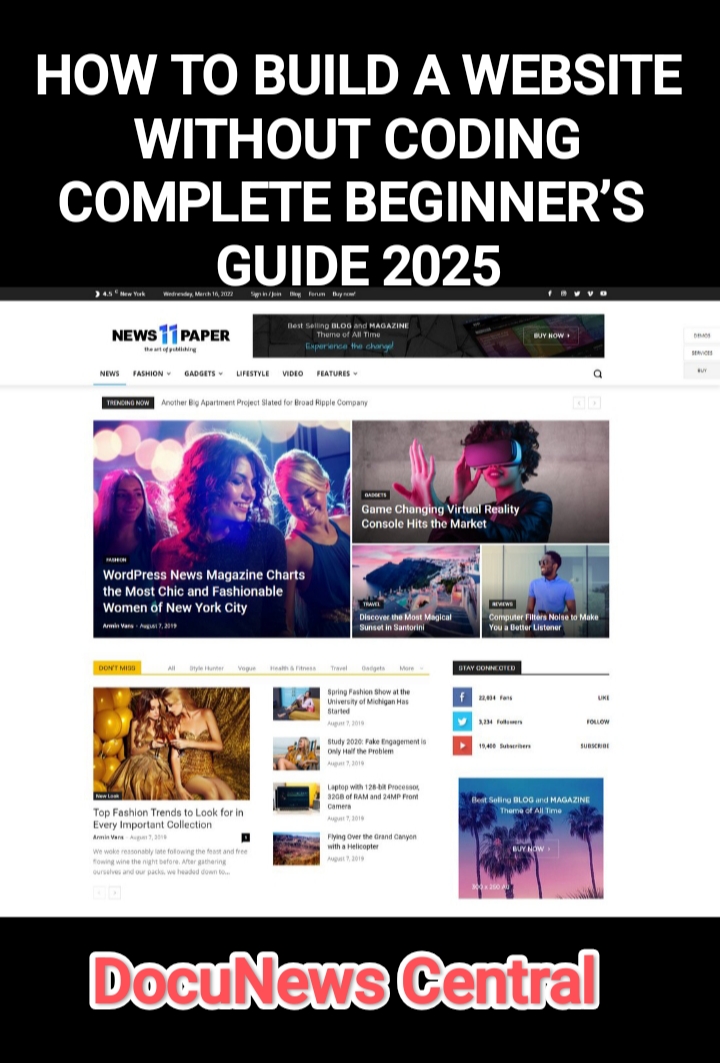
Creating a website today is easier than ever. You don’t need to know coding. No-code website builders allow anyone—students, small business owners, creatives—to build a professional website using drag-and-drop tools. This guide is written for complete beginners and walks you through every step, including planning, building, publishing, and growing your website.
1. Why Build a Website Without Coding?
No-code platforms give you:
- Ease of use: Build visually without coding skills
- Speed: Launch in hours, not weeks
- Cost-effectiveness: Avoid hiring developers
- Flexibility: Easily update content and design
- Built-in hosting and security: SSL, backups, and site maintenance handled for you
Even if you have no technical background, you can create a professional website that looks amazing and functions well.
2. Planning Your Website
Before choosing a builder or template, plan your website carefully:
- Purpose: Blog, portfolio, e-commerce, school project, or personal website.
- Audience: Who will visit your site? Customers, readers, or friends?
- Pages Needed: Home, About, Contact, Blog, Shop, etc.
- Features: Contact forms, galleries, online store, social media links.
- Design Style: Choose colors, fonts, and layout style that match your brand.
A clear plan saves time later and ensures your website looks professional.
3. Top 3 Beginner-Friendly No-Code Website Builders
After testing dozens of options, here are the 3 best no-code platforms for beginners in 2025:
1. Wix – The Most Beginner-Friendly
- Website: https://www.wix.com
- Why it’s great: Drag-and-drop editor, hundreds of templates, built-in SEO tools.
- Features:
- AI-powered website builder: Answer a few questions, Wix creates a draft site (Wix ADI)
- App Marketplace: Add forms, galleries, booking systems, and more
- Mobile optimization: Your site automatically works on mobile devices
- Pricing: Free plan available; premium plans start at $16/month
- How to start:
- Sign up at Wix.com
- Choose a template or use Wix ADI
- Drag and drop text, images, and widgets to design your pages
- Add features (blog, store, contact forms) from the App Market
- Preview, test, and publish
- Tutorial: Wix Beginner Tutorial
2. WordPress – Flexible and Scalable
- Website: https://wordpress.com
- Why it’s great: Powers 40% of the web, huge plugin ecosystem, beginner-friendly with WordPress.com or SeedProd page builder.
- Features:
- Pricing: Free plan with WordPress subdomain; paid plans for custom domains start at $5/month
- How to start:
- WordPress.com (simplest): Sign up, choose a theme, edit pages using block editor
- Self-hosted: Buy hosting and domain, install WordPress, then use SeedProd for drag-and-drop page building
- Add features (contact form, blog, e-commerce) via plugins
- Publish your site
- Tutorial: Build a WordPress Website Without Coding
3. Squarespace – Elegant Designs for Creatives
- Website: https://www.squarespace.com
- Why it’s great: Beautiful, designer-quality templates, built-in SEO and analytics.
- Features:
- Drag-and-drop content editor, easy page layouts
- Built-in blog and online store tools
- Customizable style settings: fonts, colors, spacing
- Mobile-friendly automatically
- Pricing: 14-day free trial; paid plans start at $16/month
- How to start:
- Sign up at Squarespace
- Choose a template (category: blog, portfolio, store)
- Edit pages using drag-and-drop blocks
- Add blog, contact form, or online store as needed
- Preview, test, and publish
- Tutorial: Squarespace How to Make a Website
4. Step-by-Step Guide for Beginners
Step 1: Create Your Account
Sign up on Wix, WordPress, or Squarespace using your email. Confirm your email to activate your account.
Step 2: Choose a Template
Templates save time and give your website a professional layout. Pick one that matches your site’s purpose (portfolio, blog, online store).
Step 3: Add Pages
Common pages: Home, About, Services, Blog, Contact
- Wix: “Menus & Pages” → Add Page
- WordPress: “Pages” → Add New
- Squarespace: “Pages” → Add Page → Choose layout
Step 4: Add Content
- Text: Write short, clear paragraphs
- Images: Upload from your computer or use free image sites like Unsplash or Pexels
- Videos: Embed YouTube or Vimeo links if needed
- Call-to-action buttons: “Contact Us,” “Buy Now,” or “Subscribe”
Step 5: Customize Design
Change colors, fonts, spacing, and background. Rearrange sections or blocks. Make sure your site looks good on mobile (check mobile preview).
Step 6: Add Extra Features
- Contact forms, booking forms, newsletter signup
- Blog: Add posts regularly
- Online store: Add products and payment methods (if needed)
- Analytics: Connect Google Analytics to track visitors (Google Analytics)
Step 7: SEO Optimization
- Set page titles and meta descriptions
- Use headings (H1, H2) for structure
- Add alt text to images
- Use readable URLs (example.com/about instead of example.com/page1)
Step 8: Preview & Test
- Check all pages, links, and forms
- Test mobile layout
- Ensure fast loading (compress images if needed)
Step 9: Publish Your Website
Click “Publish” on Wix, Squarespace, or WordPress. Optional: connect your own domain (buy from Namecheap, GoDaddy, Google Domains).
Step 10: Maintain & Grow
- Update content regularly
- Track analytics to improve user experience
- Optimize SEO continuously
- Scale features as your site grows (add e-commerce, more pages, newsletters)
5. Beginner Tips for a Perfect Website
- Start simple: Focus on a few essential pages first
- Consistency: Stick to one color palette and 1–2 fonts
- Whitespace: Avoid clutter; let your content breathe
- Mobile-friendly: Most visitors will use phones
- Test everything: Links, forms, videos, images
- Use free tools: Canva for graphics (Canva)
- Ask for feedback: Share your site with friends or family
6. Extra Resources & Links
- Free Images: Unsplash, Pexels
- Analytics: Google Analytics
- Website Builders:
✅ Final Thoughts
Even without coding, you can build a professional website today. The 3 platforms I recommend—Wix, WordPress, and Squarespace—are beginner-friendly, flexible, and scalable. By following this guide step by step, you can go from idea to live website in a matter of hours.
Start building your website today, and see your online presence come to life without writing a single line of code!